How to upload an HTML email template
Updated Nov 4, 2026
Import an email design you created elsewhere. Wefranch saves it as a reusable template and selects it for your campaign.
Prepare the file
Save your design as .html or .htm. Its HTML title becomes the template name. For personalization codes, see Email variables.
Upload and preview
- Open Email Campaigns, click New campaign…, and use Next until Design.
- If a template is selected, clear it with the × inside Template. It stays saved in the list.
- Click Upload HTML… and choose your file.
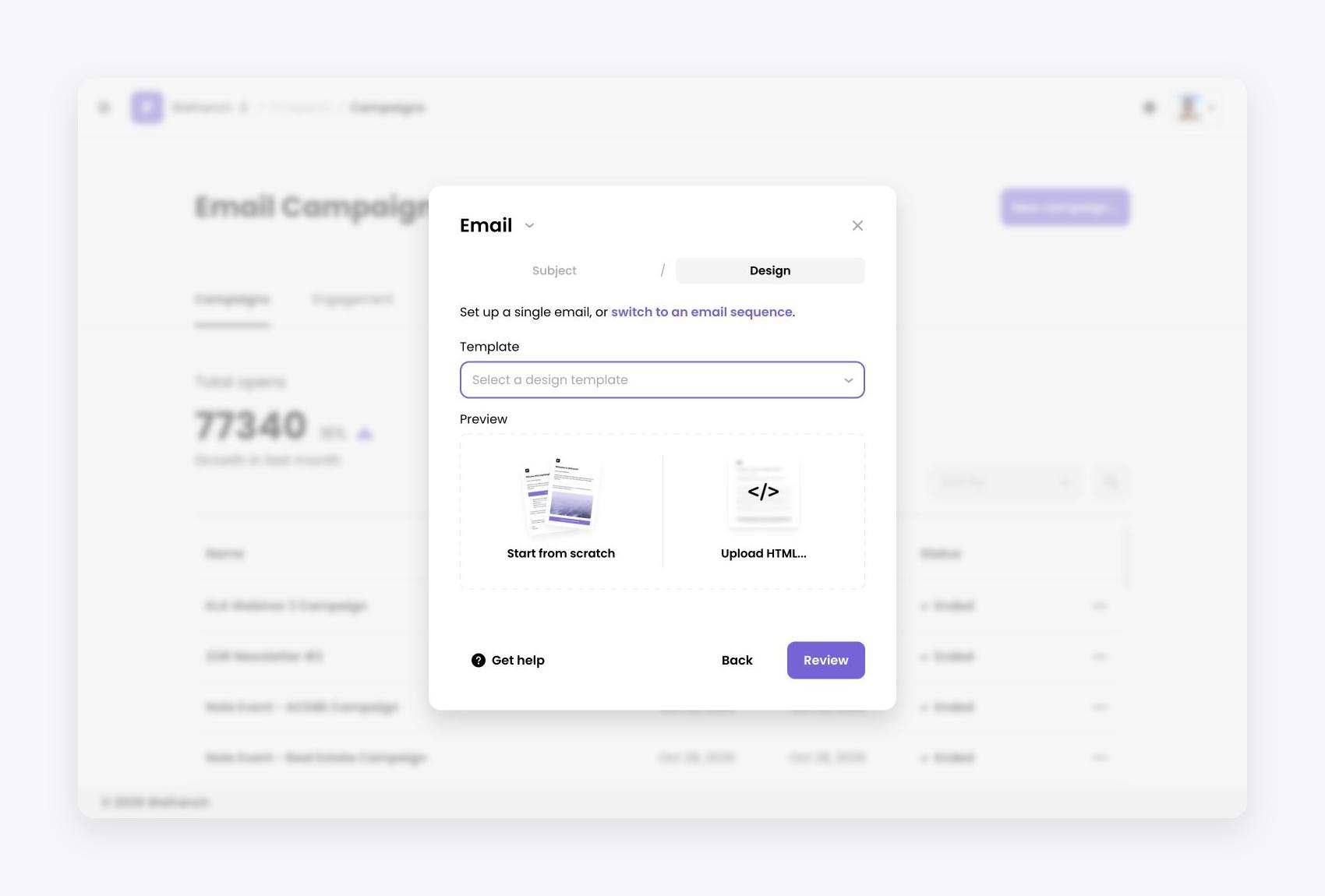 Upload HTML on the Design step
Wait for Importing HTML to finish; this may take up to a minute. The imported template is saved and selected automatically, with no separate Save step.
Scroll inside the preview to check the whole email. Wefranch adds an Unsubscribe link below the design, so check for duplicates if your file already has one. Variables show sample values in the preview, such as John for a first name.
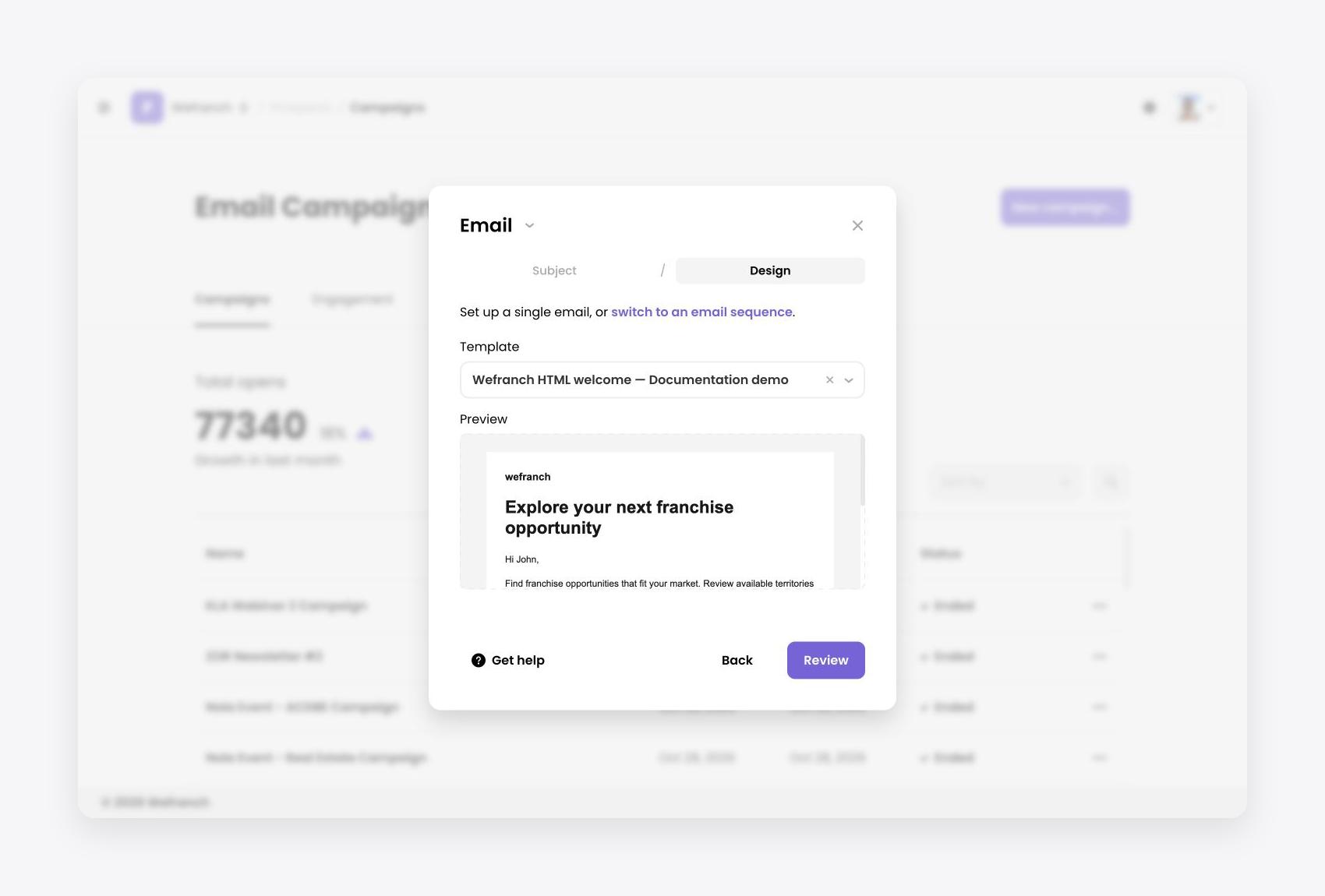 Imported template selected with its email preview
Reuse, rename, or update
Find the saved design by typing its name in Template. Click the pencil icon beside it to open Edit e-mail template, change Template name, and click Save.
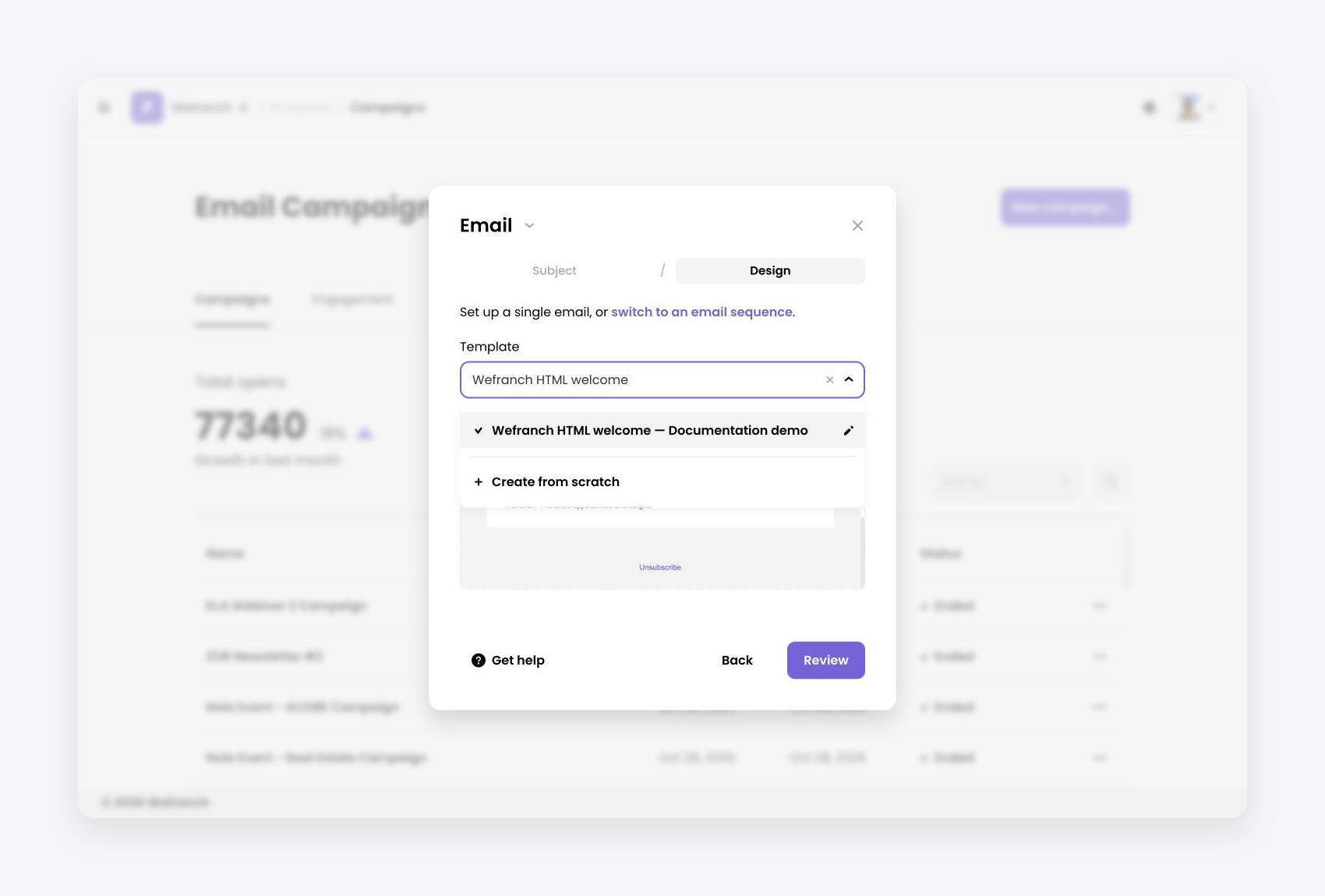 Saved template with its pencil icon
To change the content or layout, edit the original HTML file and upload it again. Each import creates another template; use distinct titles for versions.
Importing does not send emails. Complete the campaign setup before sending.
For support, email [email protected].