How to create & send Email Campaigns using MUMBO tool
Updated Oct 21, 2026
Start by clicking on the email icon in the Prospects or your Leads toolbars https://wefranch.com/prospects/
The wizard opens on Settings. It has three stages in the title dropdown: Settings → Email → Review & Send. Use Next / Back, or the step tabs. Closing after the first step asks you to discard changes.
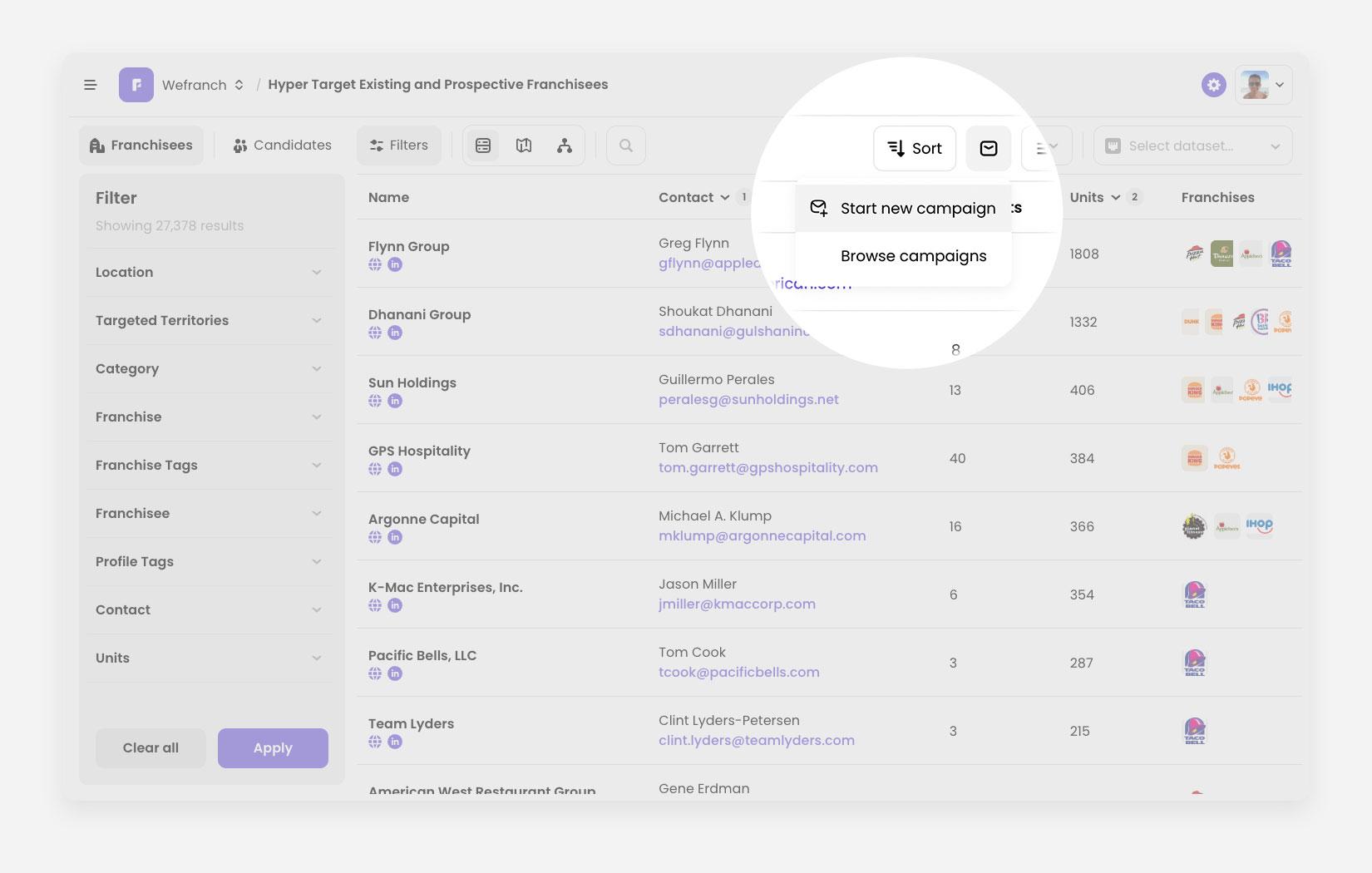
In the Campaign step, optionally type an internal Campaign name (max 64 characters). If you skip it, it stays Untitled campaign.
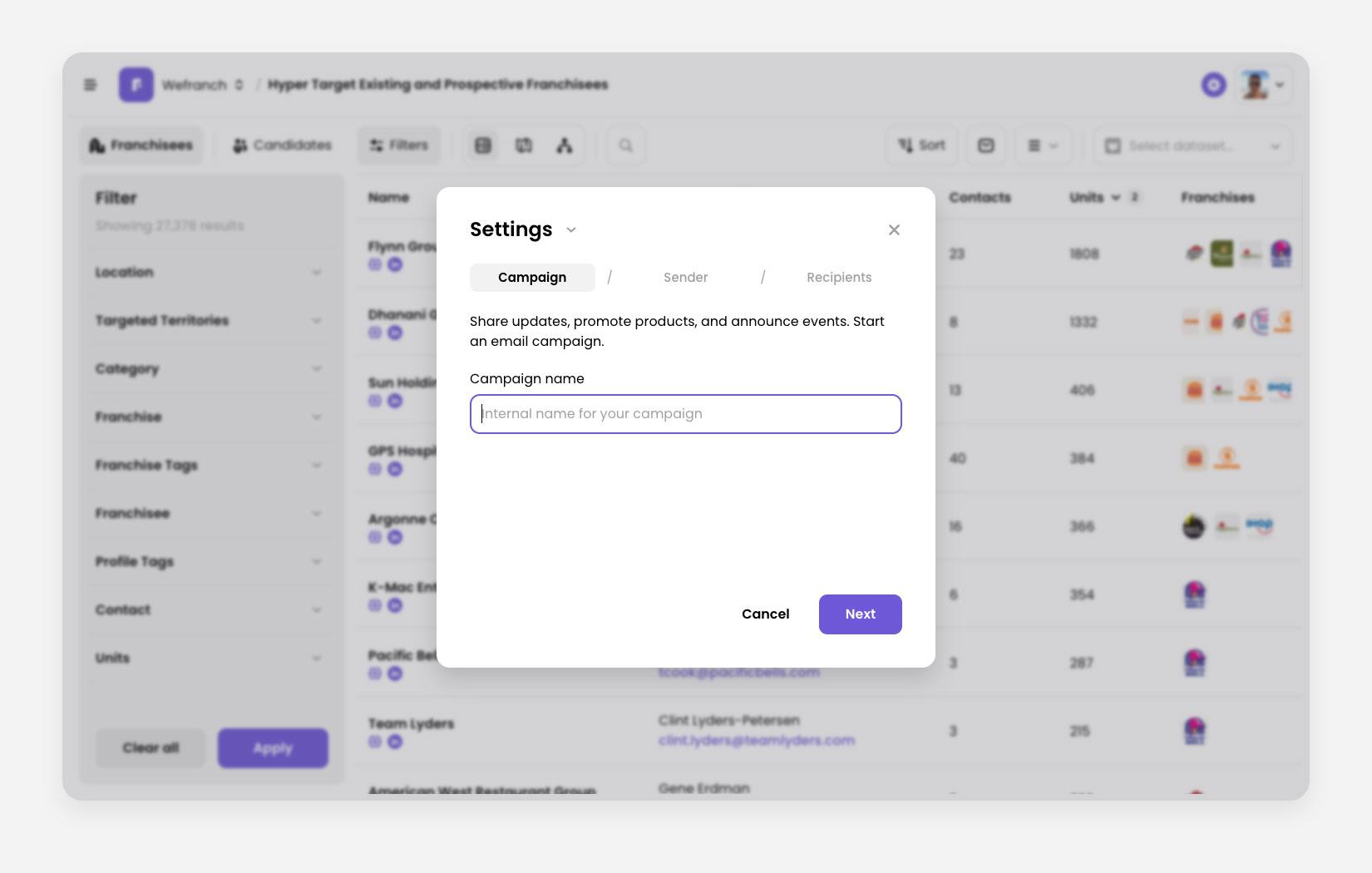
In the Sender step, to add a new sender: open the email dropdown → Add new sender, enter email and name, then either authenticate the domain by setting up the DNS or verify the email address using verification link.
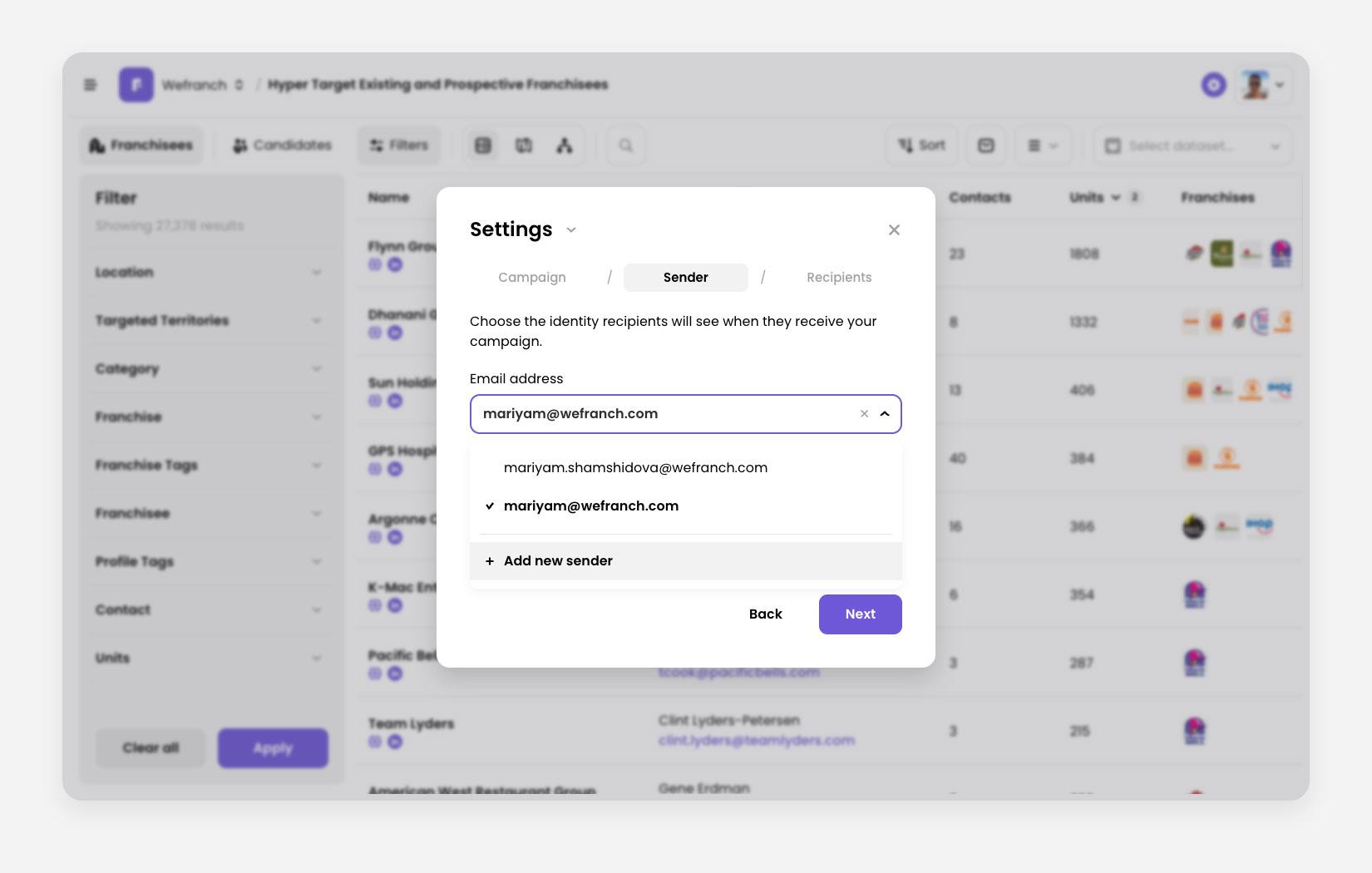
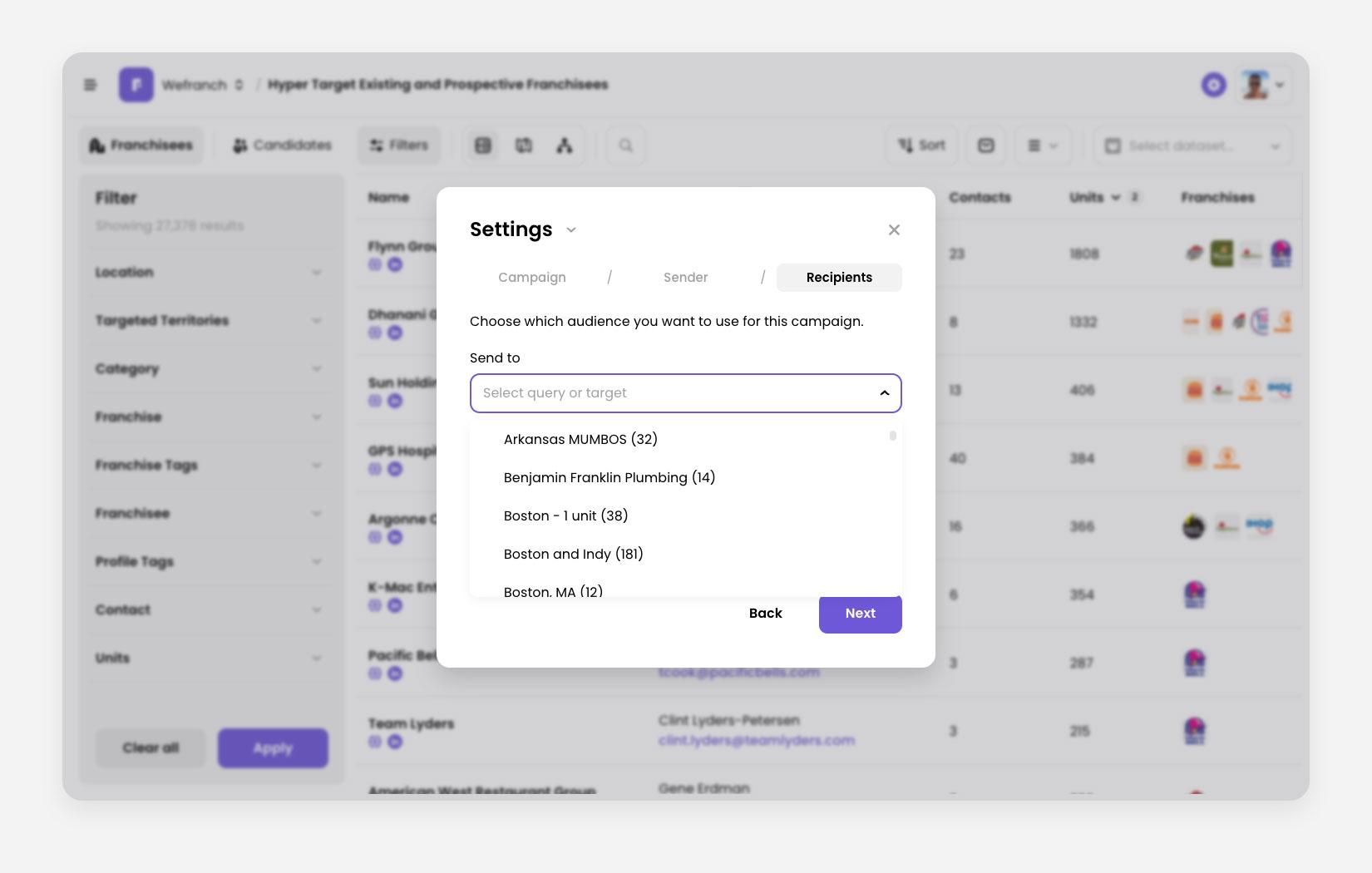
In the Recipients step:
- Send to is prefilled with Current search (the contacts in your current filters).
- You can also pick different saved searches (targets). The count and remaining-capacity bar update as you go. Daily cap is 1,000 emails per campaign.
In the Subject step, Enter an email Subject line (required, max 150 characters). Optionally add Preview text (inbox snippet).
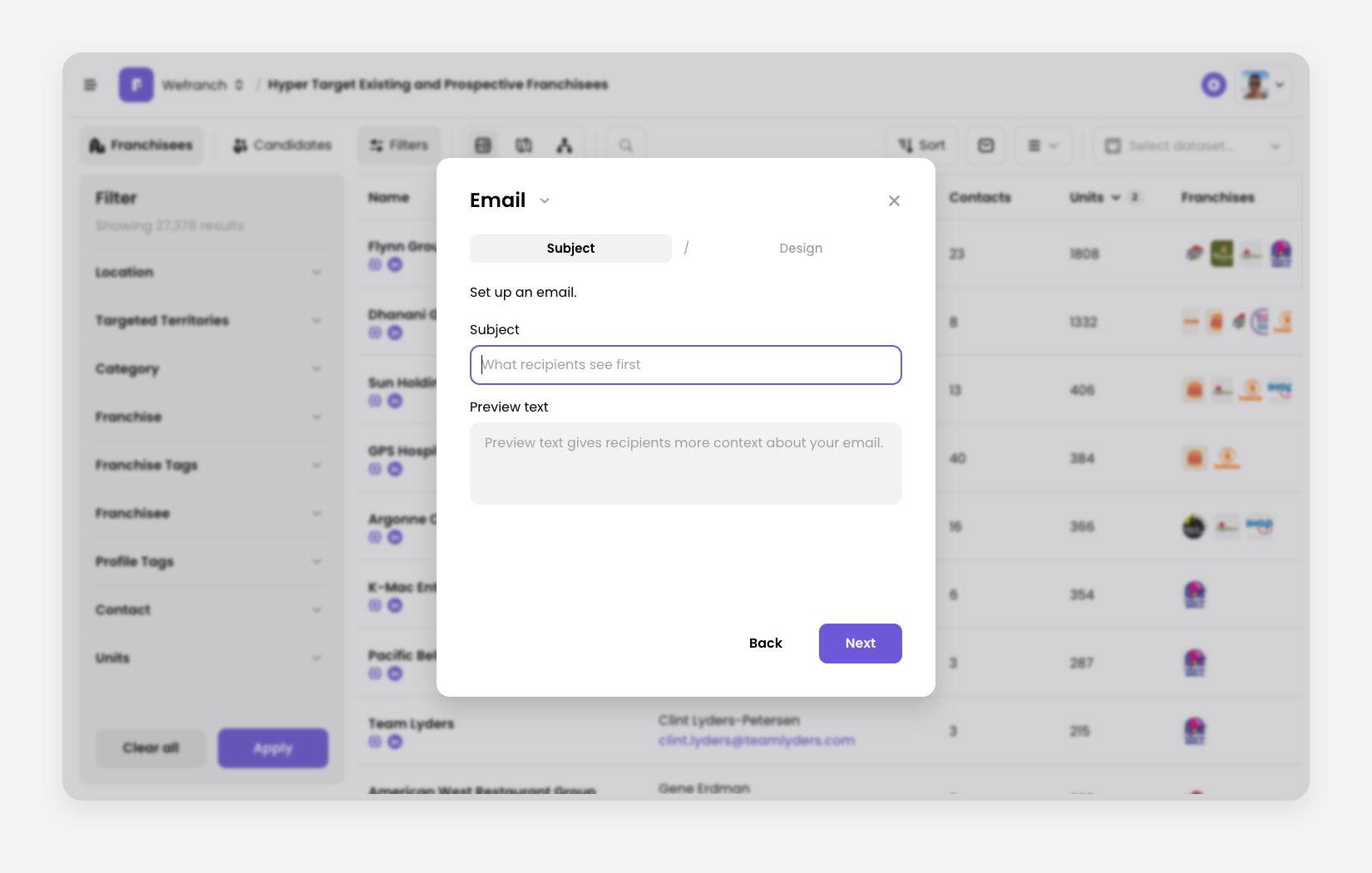 image6.jpg
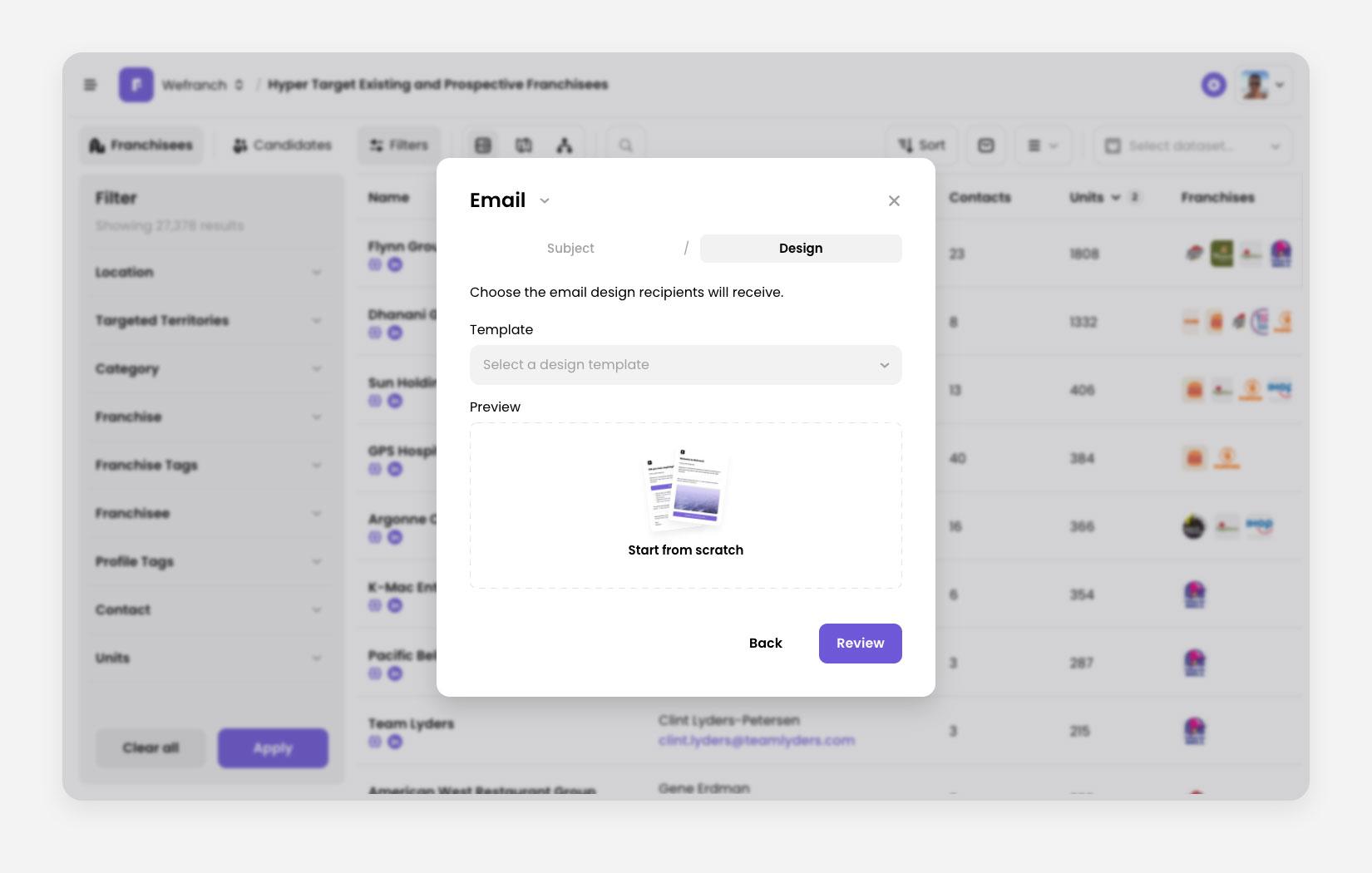
In the Design step, create new from scratch or choose a saved template. Then, click Review → If anything is missing, it jumps back to highlight the errors.
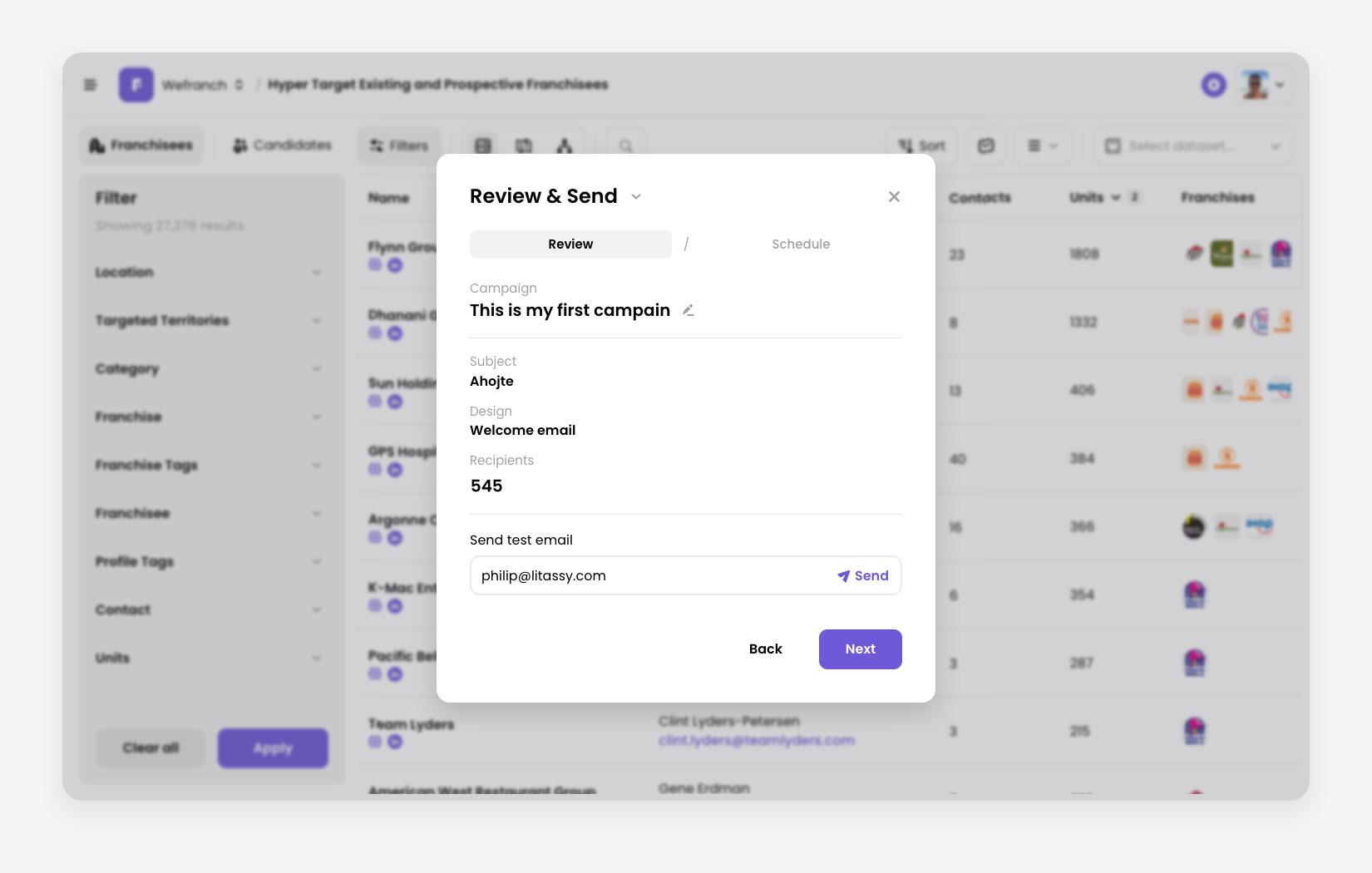
In the Review & Send step,
- Double-check Subject, Design, and Recipients.
- Rename the campaign from the Campaign row if you want.
- Optionally send a test email (needs a valid address)
- Click Schedule.
In the Schedule and finish step,
Send now, or Schedule for later and pick a date and time.
The system supports the following variables:
{{{ wf:firstName }}} — Person’s first name; defaults to an empty value.
{{{ wf:lastName }}} — Person’s last name; defaults to an empty value.
{{{ wf:fullName }}} — Person’s full name; defaults to an empty value.
{{{ wf:locationCity }}} — Person’s city; defaults to “your city”.
{{{ wf:locationState }}} — Person’s state; defaults to “your state”.
{{{ wf:locationCountry }}} — Person’s country; defaults to “your country”.
{{{ wf:locationDMA }}} — Person’s DMA; defaults to “your area”.
{{{ wf:mapDMA }}} — Person’s DMA map image. If unavailable, the map is removed.
Name and location variables can be used in campaign subjects, preview texts, heading modules, text modules, and button labels. Map variables are supported in text modules only.
Type wf: to see available variables and filter them by name. In heading and text modules, variables can also be dragged from the Variables panel.
For support, please email [email protected]